Transcribe Audio to Text Offline on Mac and Windows
Learn how to transcribe audio to text offline on Mac or Windows with a local AI model and no upload. Three methods compared, plus a step-by-step guide.
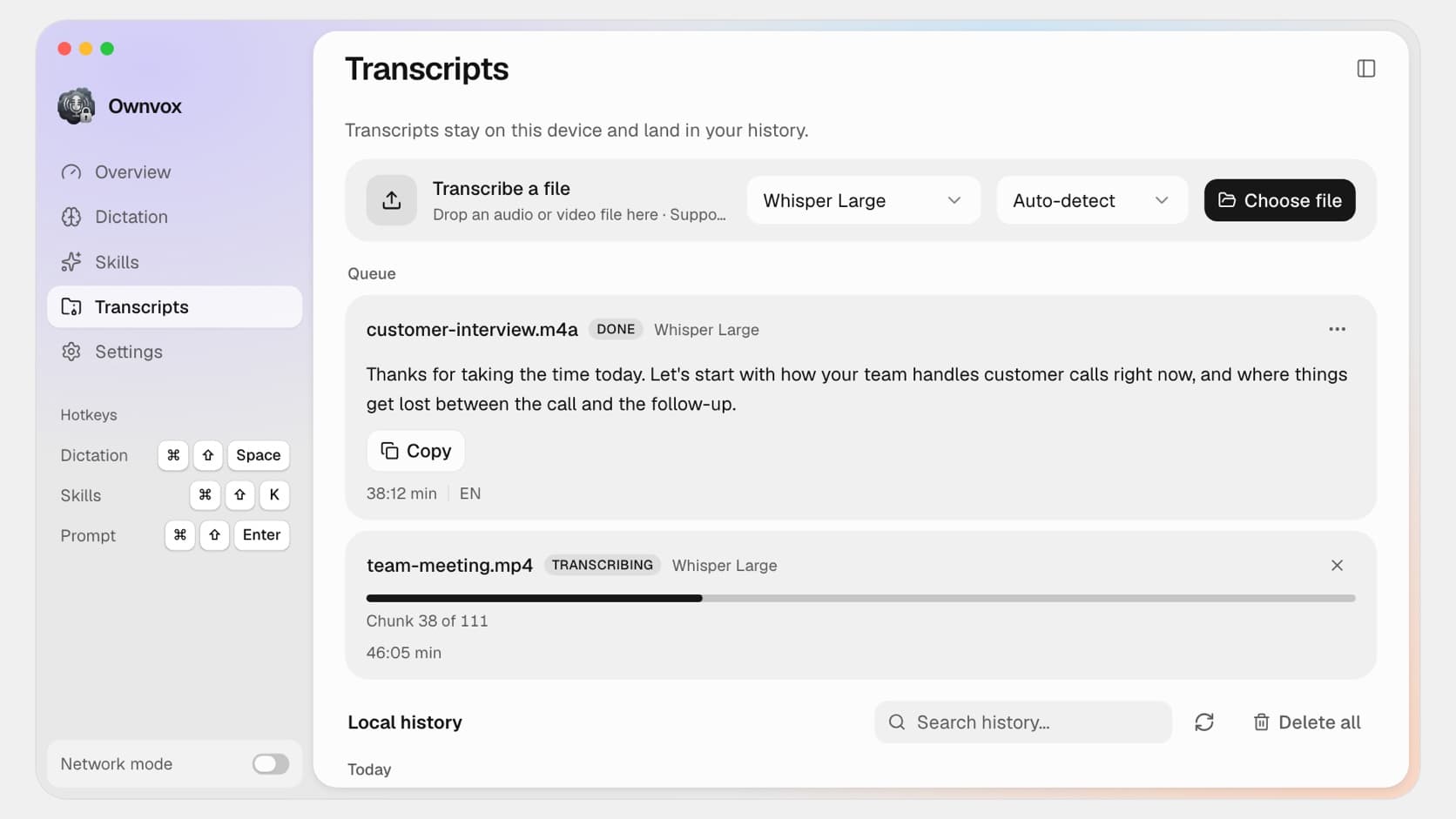
A one-hour interview, the recording of a lecture, a meeting you recorded yourself: if you want to turn any of these into text, you almost always end up with an online service and upload the file. That works, but it often eats into a minute quota, fails on long recordings because of file size limits, and means the recording ends up on someone else's server.
You can do it without an upload. Speech recognition models like Whisper, which many online services are built on, now run on an ordinary laptop. This article explains what offline transcription means technically, which three approaches exist, and how to transcribe an audio file to text step by step on a Mac or in Windows.
What "transcribe offline" actually means
With offline transcription, the speech recognition model runs on your own device, meaning on your computer's processor or graphics chip, and not in a data center. A generation of open models makes this possible: OpenAI released Whisper as open source in 2022, and NVIDIA's Parakeet is a second model family built for speed. Both can be downloaded and run locally.
The word "offline" covers two things that often get mixed up. First, you need no internet connection while the transcription runs, so you can work on a train, in an archive or out in the field. Second, the file never leaves your device, because there is simply no server it gets sent to. You need the internet for the setup, meaning to install the software and download the model, but not for the transcription itself. More on the technology behind local models in our guide to offline dictation software.
When local transcription pays off
The advantage is clearest with confidential recordings. An interview with a source, a conversation with a client or an HR meeting should not end up on third-party servers without good reason. If the file stays on your computer, the question of who might read it, store it or use it for model training goes away.
The second reason is practical: long recordings and many files. Online services often bill by the minute or cap the file size. Locally there is no quota that runs out, and no file that first has to be pushed through a weak connection. An hour of audio easily comes to several hundred megabytes, and on hotel Wi-Fi even the upload becomes a test of patience.
To be fair, there are cases where local is not the best choice. If you need speaker labels, timestamps or finished subtitles, a specialized tool serves you better, on the Mac for example MacWhisper, which we cover in a separate comparison. And on very old hardware the computation takes noticeably longer than on a service with server-grade GPUs.
Three ways to turn audio into text offline
| Method | Setup | Strengths | Limits |
|---|---|---|---|
| Whisper on the command line | Terminal, Python or whisper.cpp | Free, full control, subtitle formats too | Technical setup, no interface |
| Browser tool with a local model | No installation | Free, ready instantly, also reads voice messages | Smaller models, the tab has to stay open |
| Desktop app with a local model | Install an app | Large models, long files, queue | Installation needed, paid depending on the app |
The command line is the route for anyone comfortable in the terminal. You install the original from OpenAI through Python, while the leaner C++ port whisper.cpp works without Python. You get full control over the model and the output format, but you have to deal with installation, model files and, for unusual formats, conversion yourself.
A browser tool with a local model is the quickest way in. Our free audio to text converter loads a Whisper model into your browser once and then transcribes on your device, so the file is not uploaded. In return it works with the smaller models Whisper Base and Whisper Small, and the page has to stay open while it computes. For a short recording in between other things that is ideal, for a three-hour interview less so.
A desktop app combines the large models with an interface that needs no terminal. It uses your computer's hardware directly, processes long files in one go and remembers the results. The next section shows what that looks like in practice, using Ownvox, our own app for Mac and Windows.
Step by step: transcribe an audio file offline
1. Install a model. In Ownvox, download a local model once, for example Whisper Large v3 Turbo or Parakeet. You need an internet connection for this download, and none for the transcription afterwards.
2. Open the Transcripts tab. At the top you will find the "Transcribe a file" card, with your previous history below it.
3. Drag in your files. Drag one or more audio or video files onto the card, or pick them through the file dialog. For videos, only the audio track is used.
4. Choose a model and language. Pick one of your installed models and the language of the recording, or let the language be detected automatically.
5. Use the transcript. Once the file is done, the text appears in the file's row, and one click on "Copy" puts it on your clipboard. The transcript is also saved to your history so you can find it again later.
The clip above compresses the time. How long a file really takes depends on its length, the model you chose and your computer.
Save the transcript as a text or Markdown file
If you want to file the text away rather than just paste it, open the three-dot menu on a finished file. There you can choose "Save as .txt" or "Save as .md". The .txt file contains plain text. The Markdown file additionally gets the name of the recording as a heading and a line with the date and length, which is handy if you collect transcripts in a notes app like Obsidian.
The recording's name is already filled in as the file name, so customer-interview.m4a becomes customer-interview.md. From the same menu, "Open in Transcripts" takes you to the entry in your history.
Several recordings at once: the queue
If you want to write up a series of interviews or a whole semester of lectures, drag all the files in at once. Ownvox puts them in a queue and works through them one after another, one file at a time, so the model gets your computer's full processing power. For each file you can see whether it is waiting, running or finished.
Meanwhile you can carry on as normal. If you dictate some text in the middle, the dictation takes priority: the queue stops for that moment and then resumes on its own where it left off. That way a long recording does not block the tool you need for writing right now.
Which files work and which don't
Ownvox reads the common audio formats mp3, wav, m4a, aac, flac and ogg, as well as the video formats mp4, mov and mkv, each up to six hours per file. That covers voice recorders, recording apps, Zoom recordings and most cameras.
Opus and WebM are not supported. That mainly affects voice messages from WhatsApp and Telegram, which are almost always in Opus format. For those there is our free browser tool Voice message to text, which transcribes exactly these files locally in the browser.
The second limit concerns the output: you get plain text. Ownvox does not produce timestamps, subtitle files or speaker labels. For meeting minutes, a summary or the analysis of an interview that is usually enough, but for subtitling a film it is not.
Four tips for better transcripts
Set the language manually if you know it. Automatic detection is convenient but can get it wrong when a recording begins with music, a long silence or a sentence in another language.
Use the larger model for difficult recordings. A large model copes better with dialect, background noise and several speakers than a small one. The computation takes longer, but you correct less afterwards.
Pay attention to the sound while recording. A microphone close to the speaker and a room without echo do more than any model. What a person can barely understand, the AI will not understand reliably either.
Proofread names and technical terms. Proper names, abbreviations and numbers are the typical sources of error in any speech recognition. A quick check of those spots saves trouble later.
Privacy: what local solves and what it doesn't
When the transcription runs on your device, no service provider receives the recording for that step. That removes the need for a data processing agreement for the transcription, the question of where the server is located and the worry about whether content is used for model training. In Ownvox this holds for files without exception: file transcription always runs through a local model, even if you have switched on the optional cloud for dictation.
That does not take care of your other obligations. You still need a legal basis for the recording itself, and both recordings and transcripts sit on your computer, which you should secure accordingly. The details are in our article on GDPR-compliant transcription software. This section is a general overview, not legal advice.
Frequently asked questions about offline transcription
Can you really transcribe audio without internet?
Yes. After the one-time installation and the download of a model, speech recognition runs entirely on your computer. No connection is needed during the transcription, and the file is not transferred anywhere. As a subscription app, Ownvox only checks its licence online from time to time, which has nothing to do with your recordings.
Which program transcribes audio files offline on Mac and Windows?
There are three kinds of solutions: Whisper on the command line, browser tools with a local model, and desktop apps. Ownvox is a desktop app for macOS and Windows that transcribes audio and video files with local Whisper and Parakeet models. On the Mac, MacWhisper is also widespread, and it additionally offers subtitles and speaker labels.
How long does an offline transcription take?
That depends on the length of the recording, the model and your hardware. Smaller models and computers with a recent processor or graphics chip are faster, while large models on older devices take correspondingly longer. The most reliable way to find out is to test with a short file of your own.
Which file formats can be transcribed offline?
Ownvox processes mp3, wav, m4a, aac, flac, ogg, mp4, mov and mkv, up to six hours per file. For video files, the audio track is transcribed. Opus and WebM are not supported.
Can I transcribe WhatsApp voice messages offline?
Not with the Ownvox app, because WhatsApp voice messages are stored in Opus format. Our free browser tool Voice message to text reads these files and transcribes them locally in the browser without uploading them.
Is offline transcription as accurate as a cloud service?
With good sound quality, large local models deliver results that work well for interviews, lectures and meetings. How accurate a transcript turns out depends on the language, the recording and the model. A comparison using your own material tells you more than any general statement.
Do I get timestamps, subtitles or speaker labels?
Not with Ownvox: the result is plain text that you can copy or save as .txt or .md. For subtitles, Whisper on the command line or a specialized program like MacWhisper is a better fit.
How much does offline transcription with Ownvox cost?
Ownvox costs 9.99 euros a month or 69.99 euros a year, including VAT. Both plans start with seven days free, and file transcription is included in both.
Conclusion: the recording doesn't have to leave your device
Turning audio into text is no longer a job that necessarily needs a server. A browser tool with a local model is enough for a short file, the command line gives you full control, and for long recordings, whole batches and everyday use there is a desktop app. In all three cases the recording stays where it was made.
If you want to try it with your own files, you can try Ownvox free for seven days and then download the app for Mac or Windows. File transcription is only one part of it: the same local models also dictate in any app, right at your cursor.