Use ChatGPT by Voice: Prompts in Any App (Mac & Windows)
Use ChatGPT by voice, in any app on Mac and Windows: voice prompts via a hotkey, the answer right at your cursor, with your own model and local transcription.
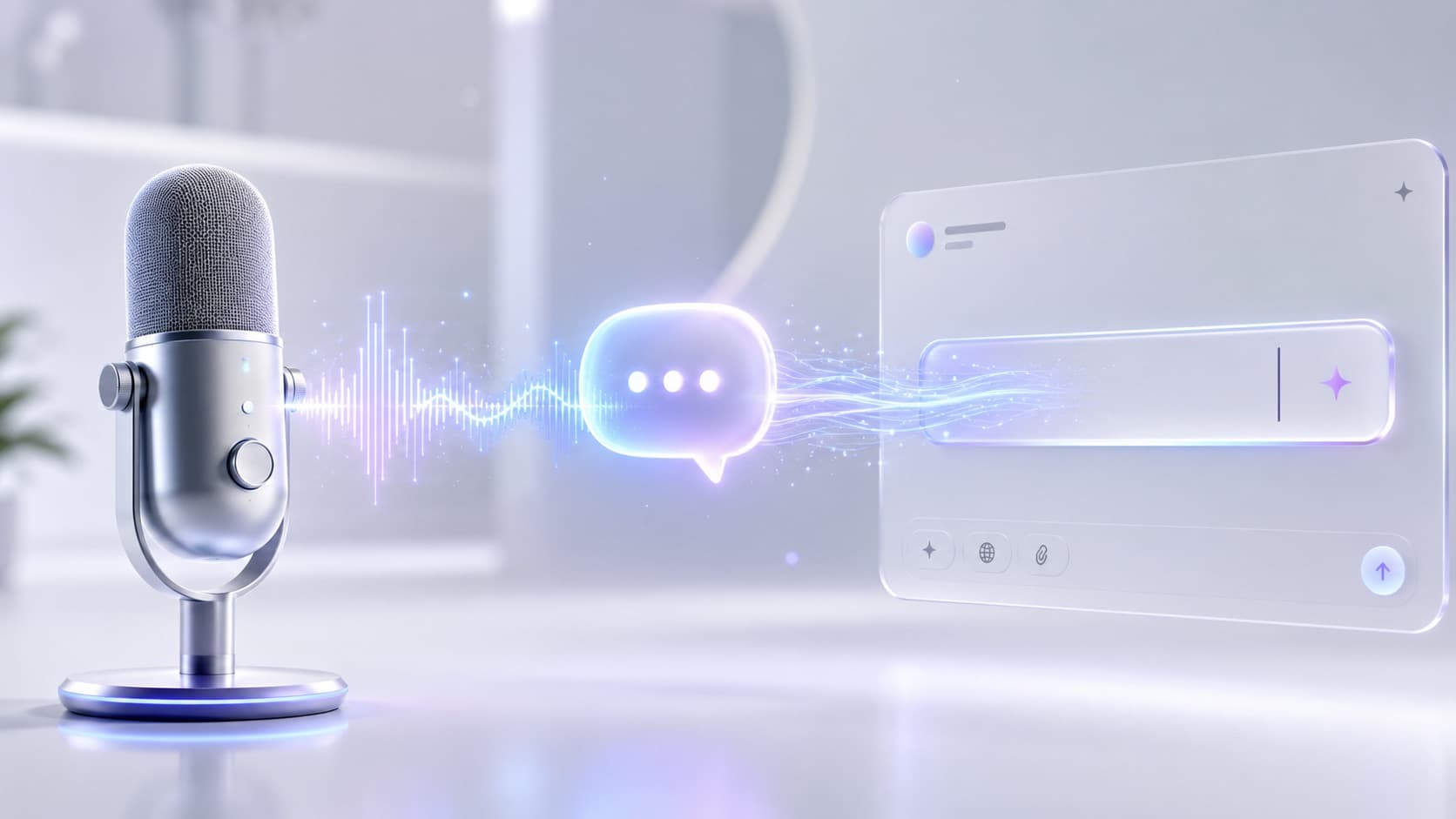
You are writing an email and want to quickly ask ChatGPT how to phrase a paragraph more politely. So you switch to the ChatGPT window, type the prompt, copy the answer, switch back, paste. Three context switches for a single question. This is exactly where the advantage an AI assistant is supposed to give you falls apart.
ChatGPT does have its own voice mode, but it lives only inside the ChatGPT app. The moment you are working in Outlook, your code editor, or Notion, you are back to typing and copying back and forth. So the real question is not "can I talk to ChatGPT", but "can I talk to ChatGPT without leaving the app I am already working in".
That is what using ChatGPT by voice means in this article: you press a hotkey, speak your prompt, and the answer appears right at your cursor, in any app. No separate window, no copy and paste. The speech recognition runs locally on your device, and the model behind it is yours to choose.
What "using ChatGPT by voice" actually means
There are two very different ways to operate ChatGPT with your voice.
The first is ChatGPT's built-in voice mode. You speak, ChatGPT answers, all inside the ChatGPT interface. It is great for a conversation or for asking something on the go, but it is bound to one single app. Whatever you get there, you then have to move by hand to where you actually need it.
The second is a system-wide voice prompt. Here the voice layer does not sit inside ChatGPT but at the operating-system level. You trigger it with a global hotkey in any application, speak your question, and the AI answer is inserted exactly where your cursor sits. The model behind it can be ChatGPT, but it can also be a different one, depending on what you configure.
The difference sounds small but it changes everyday use completely. You stop "going to ChatGPT". You take ChatGPT everywhere.
Why ChatGPT's own voice mode is not enough for real work
Imagine you are working on a pull request and want a commit message improved. With ChatGPT's voice mode you would have to leave the code editor, speak into the ChatGPT app, copy the answer, and bring it back into the editor. Voice saves you typing the prompt, but the expensive part remains: leaving your tool and coming back.
That switch is the hidden friction. It costs not only seconds but pulls you out of the thought you are in. A system-wide voice prompt removes it entirely, because question and answer happen in the same place: where you are already writing.
How a system-wide voice prompt works
 Illustrative image, AI-generated
For this to work, three things mesh together.
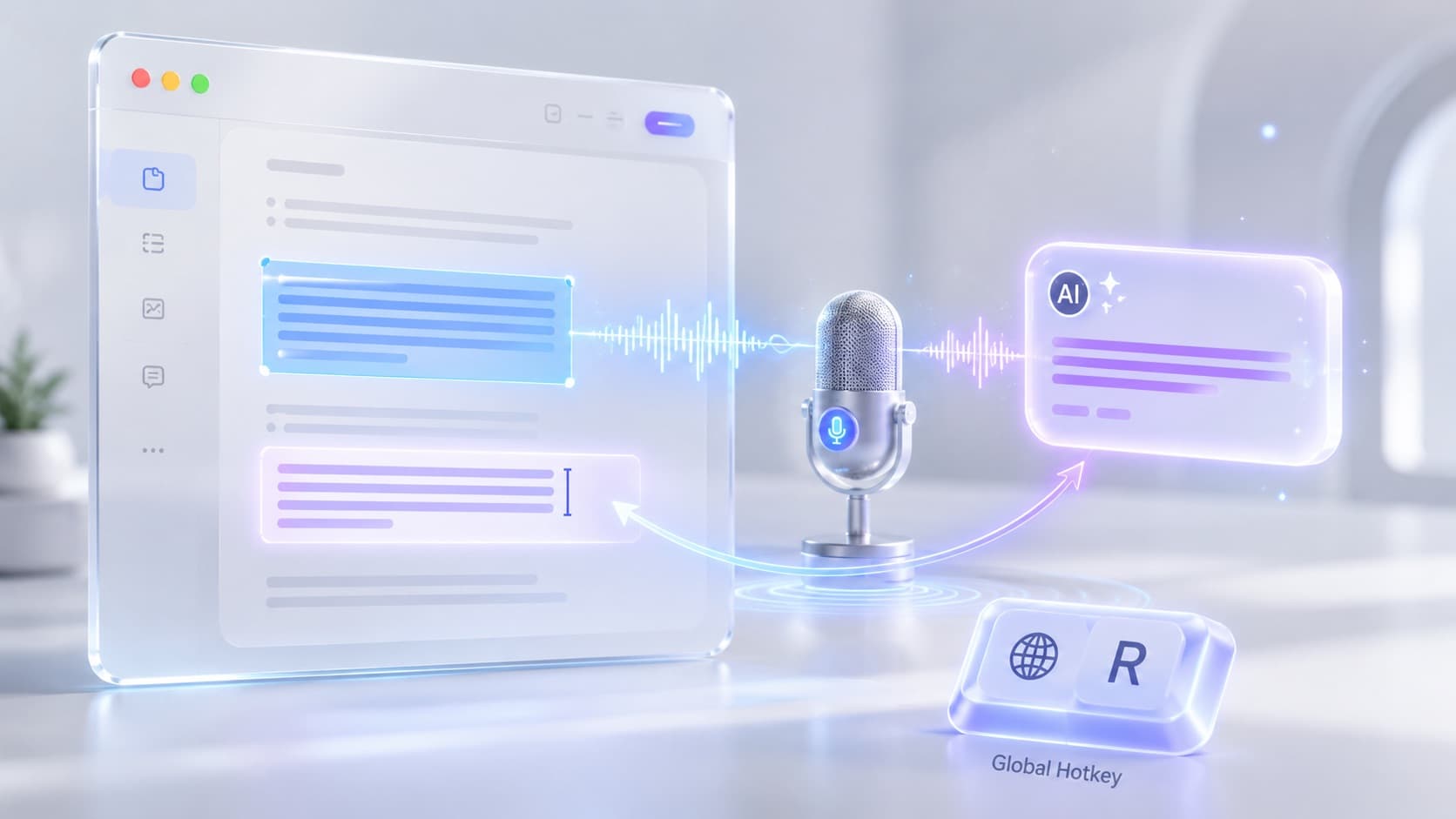
First, the global hotkey. A desktop app like Ownvox registers a key combination with the operating system that responds independently of the active program. You press it in the browser, the editor, or your mail, and recording starts immediately, without switching anywhere.
Then, local transcription. Your spoken question is turned into text directly on your device using local models like Whisper or Parakeet. This step needs no internet and sends your voice to no server.
Finally, the actual prompt to the AI. The transcribed text goes as a prompt to the model you chose, and the answer is inserted exactly where your cursor sits. Especially handy: if you selected text beforehand, it is passed along as context automatically. So you can highlight a paragraph and simply say "make this shorter and more neutral" without copying anything.
If you want the basics of dictating system-wide at the cursor, see our article on Whisper dictation in any app.
You bring your own ChatGPT access
 Illustrative image, AI-generated
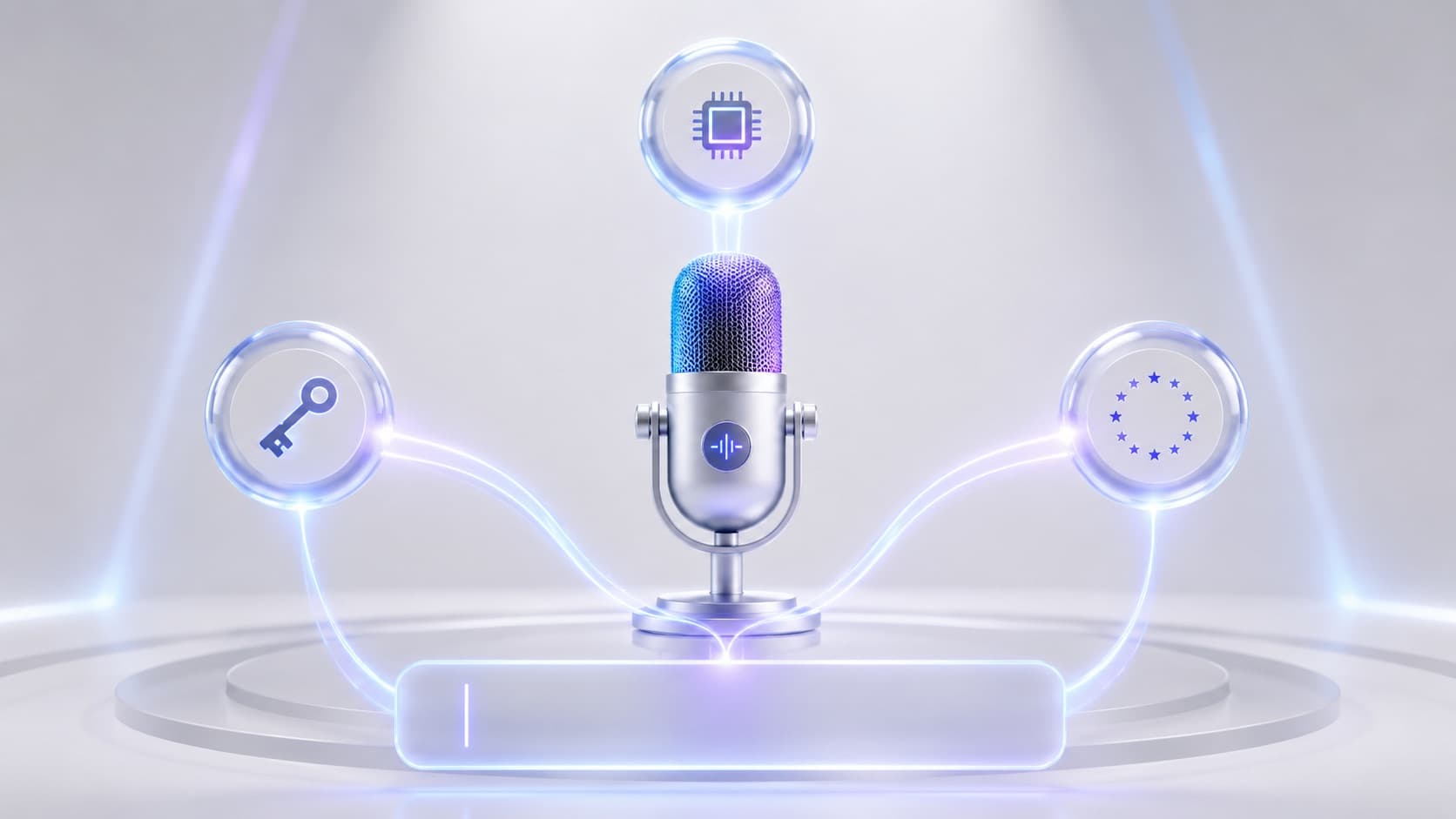
Here is the honest and at the same time strongest part: the voice layer provides the tool, you bring the model. With Ownvox you have three ways to do that.
You can add your own API key, for example through OpenRouter, and address ChatGPT or the OpenAI models directly with it. You can use your own or self-hosted endpoint if you prefer a local model or your own infrastructure. Or you use Ownvox's EU cloud, whose inference runs at Scaleway in France and whose proxy sits at Hetzner in Germany.
The nice part: you are not locked into one model. ChatGPT today, a different model tomorrow, depending on the task and budget. The voice operation always stays the same.
Where it pays off most in daily work
When writing emails and messages you draft a rough text and have it smoothed, shortened, or adjusted in tone with a voice prompt, without leaving Outlook or Slack. In the code editor you have commit messages, PR descriptions, or docs written while you stay in the code. In notes and documents you speak a rough idea and have it expanded into an outline directly. And while researching in the browser you highlight a passage and ask for a summary by voice, without switching tabs.
The common denominator: you do not have to learn a separate AI integration for any of these apps. One hotkey, the same gesture everywhere.
Privacy: what stays local and what does not
To be honest, this is a point where many tools get vague, so here it is clearly separated. The transcription of your voice runs locally on your device by default, your audio data does not leave it. The prompt itself goes to the model you chose. If you use your own ChatGPT key, OpenAI's terms apply. If you use a local endpoint, that step stays on your side too. If you use Ownvox's EU cloud, processing stays within the EU.
What matters is control over it: a privacy switch disables all cloud features with one click, so only local models remain active. That way you decide per task whether speed or maximum data sovereignty wins.
Mac and Windows: a quick word on setup
For the voice prompt at the cursor to work, the app needs two grants: access to the microphone and, for insertion into other apps, Accessibility on macOS or the corresponding input access on Windows. On Apple Silicon the local transcription runs especially efficiently, and on Windows a GPU or NPU accelerates recognition. After that, all you have to remember is one hotkey.
Frequently Asked Questions About Using ChatGPT by Voice
Do I need a ChatGPT subscription for this?
You need access to a model. That can be your own OpenAI or ChatGPT key through OpenRouter, your own endpoint, or Ownvox's EU cloud. Which model you use is up to you.
Is this the same as ChatGPT's voice mode?
No. ChatGPT's voice mode only works inside the ChatGPT app. A system-wide voice prompt works in any app and inserts the answer right at your cursor.
Is my voice sent to the cloud?
Transcription runs locally by default, your audio data stays on the device. Only the finished text prompt goes to the model you chose. With the privacy switch you can turn cloud features off entirely.
Does it really work in every app?
In any app with a normal text input field: browsers, email clients, chat tools, editors, office programs. Fields that technically seal off input are the rare exception.
Can I pass selected text as context?
Yes. If you select text before speaking, it is passed to the AI as context automatically. So you can have existing passages rewritten without copying anything.
Does it work without internet?
The transcription does. For the AI answer it depends on the model: a local endpoint works offline, a cloud model like ChatGPT needs a connection.
Conclusion: bring ChatGPT to where you work
Using ChatGPT by voice is more than the built-in voice mode. The real leap happens when you can speak in any app and the answer lands right at your cursor, with no window switching and no clipboard. Voice saves you typing, the system-wide integration saves you the context switch, and the free choice of model keeps you independent.
If you switch between your programs and an AI tab all day, a system-wide voice prompt is probably exactly what makes that switch unnecessary.
Ownvox: Voice Prompts for ChatGPT and Any Other AI
Ownvox was built for this. You press your hotkey, speak, and the AI answer appears right at your cursor, in any app on Mac and Windows. Transcription runs locally, selected text is passed along as context automatically, and you choose the model yourself: your own ChatGPT key through OpenRouter, your own endpoint, or Ownvox's EU cloud. A privacy switch disables the cloud at any time with one click.
If you want to use ChatGPT by voice without constantly switching apps, Ownvox is the most direct path there.